If you use Windows Live mail solely for reading your newsgroups like I do then it can slow you down a click or two when it opens in its default mail mode.
There is a way to get it to open up directly in newsgroup mode but in Windows 7 it takes a few extra steps of negotiating your local directories to modify the programs shortcut that resides on the Windows 7 Taskbar.
Now I know not everyone likes the Windows 7 Taskbar – that is OK. I for one do like it because it brings a ton of functionality that I never got with the Windows Vista Quick Launch toolbar. One of the things you could do though with the Quick Launch toolbar was Right Click on the shortcut and access its properties directly.
In the Windows 7 Taskbar that is not possible:
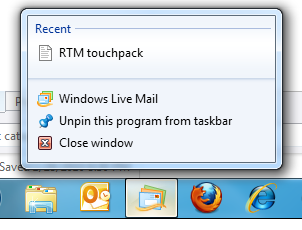
Windows Live Mail Right Click Jumplist
Notice in the above screenshot there is no Properties menu item.
So what you need to do is make sure you show hidden files, folders and drives. Type in Folder Options on your Start Menu search box and hit return. Go to the View tab and click the radio button marked Show hidden files, folders and drives

Click OK to exit the dialog.
Now you can open Windows Explorer and browse to the hard drive where your user data is stored, normally C:, and drill down as follows:
C:\Users\User Name\AppData\Roaming\Microsoft\Internet Explorer\Quick Launch\User Pinned\Taskbar
There you will now see all of the programs that are pinned to your taskbar – each represented by their respective shortcuts. Yes, the Windows 7 Taskbar icons are located in a sub-directory of a Quick Launch folder :-)
If you Right Click on the Windows Live Mail shortcut you will get the context menu that contains a menu item to the shortcuts properties:

Just Left Click on Properties and you will get the shortcuts property dialog. In the Target box type /news and make sure you have a space between the last quotation mark and the slash character.
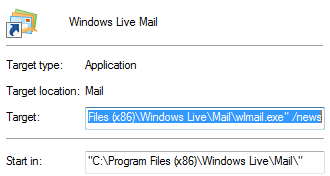
Windows Live Mail Shortcut Command Line Option for News Mode
Once you have done that click OK and you can now exit out of Windows Explorer. Make sure you return to the Folder Options dialog and re-hide your files and folders by clicking the Don’t show hidden files, folders or drives radio button.
Now if you click on the Windows Live Mail icon on your taskbar it will launch directly in newsreader mode and allow you to access the newsgroups you read directly.
Wouldn’t it be nice to access those shortcut properties directly from the Jumplist?