

Cluttered desks, sticky notes all around your monitor frame and notes everywhere but in the same place. How do you keep track of it all?
I guess you could open up a text document and keep it on your desktop and use that for keeping your notes electronically but they key there is you have to open it up to see the notes.
In Windows 7 there is a simple utility that lets you stick notes right to your desktop to hold those important pieces of info.
Welcome to Sticky Notes.
To start using Sticky Notes click on the Windows 7 Start menu Orb and type in the words sticky notes. That will give you this menu item:

Just hit return to get a sticky note on your desktop (always defaults to yellow):

Just click inside the middle area of the sticky and type your note. It will stay on your desktop until you delete it.
You can drag and adjust the size of the sticky note by clicking and grabbing the lower right hand corner and make it the size you want.

The only other real option for your sticky notes is the color. You can get to that options menu by right clicking in the sticky notes text area and getting this context menu:

Mouse to the color you want and left click to change the color of the sticky note.
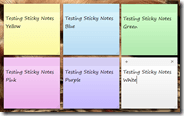
Here is a sample of each color:

To add an additional note just click on the plus sign that is at the top left corner of the active sticky note. To remove a sticky note just make the note you want to remove active and click the X button in the upper right hand corner. You will get a confirmation dialog until you opt to not be asked that question in the future.
Now move along as there is nothing else left to see here – that is the extent of Windows 7 Sticky Notes.