
Well I am on the road as I have mentioned on Twitter heading towards Seattle, WA for four days of meetings. Along for the ride is my two and a half year old Gateway MX6455 laptop. It has had Windows 7 Beta installed on it since the public release about ten days ago however it has been at the low end of my usage focus because I was on my desktop install most of the time.
With this trip it will get full time use from me and I can see how it really performs on the move.
So far it has proven to be very easy to connect to wireless networks. Here is what that process looks like through the new network interface in Windows 7:

The first thing you will see is a bright asterisk symbol on your wireless strength bar in the notification tray that lets you know there are new networks. I did not get a pop up notifying me of the networks as it worked in Windows Vista.

When you click on the wireless icon you will get this window showing the available networks and there relative strength based on your location.

Another click on the connection itself shows you more details about the wireless hot spot and gives you two choices – click the checkbox to connect every time you encounter this network (handy if you travel or frequent hot spots) and to connect.

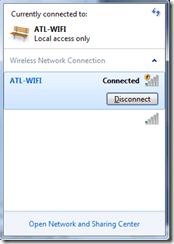
Once you click that Connect button the window will show your status as connected and you are ready to go.

After you have used your connection and your ready to move along just click again on the wireless icon in the notification tray and you will see the above window with an option to disconnect. Once you click that it will go back to its original state showing the available connections.
I just seem to remember there being many more steps in Windows Vista to get a wireless connection going – so this is extremely quick and easy to do.
More as the week continues in the series of operating on the move with Windows 7.